HUD ELEMENT / UX RESEARCH / UI DESIGN / MICROANIMATIONS
Making Zyra’s Light Lantern modes visible
Researching and designing different ways for the player to select a Light mode when using Zyra’s Lantern in the game Zyra’s Light.
About the project
Role UX designer, UI designer
Project Zyra’s Light
Duration April 2026
Concept owner Michaël Albers
Device PC with controller support
The context
Zyra’s Light is a game developed during the Minor Full-Time Game Development at HAN University of Applied Sciences. With a group of 15 people, consisting out of an art team, a sound team, a programming team and a gameplay team, a first game demo is being created. Zyra’s Light revolves about the main character Sara exploring and escaping a cave system, being guided by Zyra’s Lantern, and influencing the emotions of spirits found in the caves.
For the project, I’ve taken the role of Art Team Lead, and I’m responsible for both the art design team, as well as the Game UI and UX. Zyra’s Lantern is one of the core features of the game, and has three different modes with different functions. This case study shows how I’ve designed the UI for these functions.
When and how often does the user use the Lantern?
Deciding functionality and accessibility
Before designing the HUD element for Zyra’s Lantern, I needed to know which Light Modes the Lantern would have, and especially how often the player would switch between them. Together with the gameplay team it was decided that each Light Mode would only be used in a certain area, and for very specific cases.
Glow Mode
Functionality
Used when the player doesn’t need to use any power-ups, as a general light source.
How often needed?
Used all the time whenever a power-up isn’t used.
Spirit Mode
Functionality
Indicates which pearl is active, shows hidden spirits to the player.
How often needed?
Used whenever the player uses a power-up, used half of the time.
Beam Mode
Functionality
Used as a flashlight in dark caves, acts as a scanner to collect clues from artifacts.
How often needed?
Not used often, only in dark tunnels.



How can we help the player most effectively?
Quick-select wheels or toggles?
After deciding each Light Mode’s functionality and frequency in use, it was time to decide what HUD elements would fit the function best. Best Practices show quick-select wheels being used to toggle between weapons in FPS games, and ability toggles to quickly switch from option A to option B.
Top
A collection of UI-elements as inspiration for Best Practices, from games with similar features, such as Slime Rancher and Outer Wilds. All images are collected from GameUIDatabase.com.
Bottom
Quick sketches of various UI elements that would work for the Lantern feature. These gave a feel of how they’d fit in the screen and could quickly communicate the idea to other team members.
Most games use a quick-selection wheel menu to select weapons or abilities, however, often when there’s five or more options. For us this would work for the Emotion Pearls - another core feature - but for the Lantern we needed a quicker or more lowkey selection system, one which is always visible, unlike the wheel menu. This way the player always knows, besides from environmental cues, what Lantern mode is active.
“The player always needs to know which Lantern Mode is active.”
Making iterations on a quick-select wheel and a button toggle helped visualize how I could fit in the three Light Modes. A quick-select wheel turned out to be difficult to design with only three options. We also noticed that having a button toggle which hides one of the option wouldn’t make all the Light Modes visible to the player, making the function confusing.
The visual design process of the button toggle
Light Modes visible at all times
Eventually we settled on a button toggle with either option always visible. The standard Light Mode would be the glow. The player can then choose to activate either the Spirit Mode by pressing R1 and the Beam Mode by pressing R2 on a controller. The next step was to design how the button toggle should look, and how it would most effectively communicate its functionality to the player.
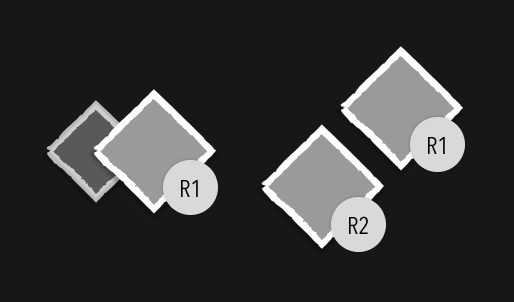
Toggle Layout
I initially designed two variations for the button toggle: A segmented control where the player has to switch between options with one invisible, and a toggle button with both options always visible.
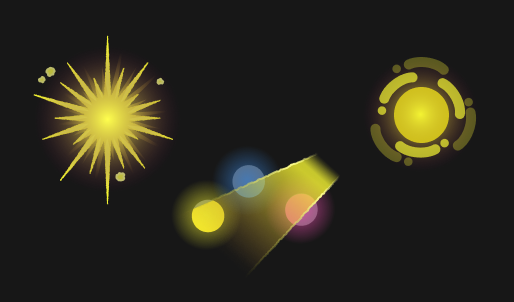
Iconography
To clearly communicate which button contains which function, I designed three icons.
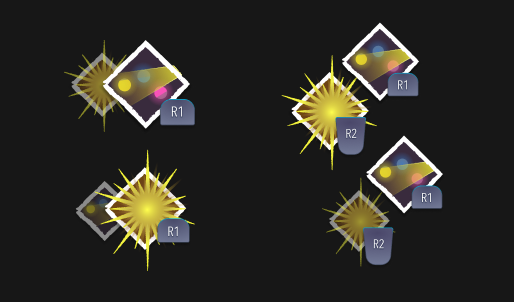
Iterations
Making variations of the buttons with their icons helped me distinquish which buttons could be most effective in translating their function and use.
The bottom right variation shows how when R1 is active, R2 is inactive at the same time, for example.
Researching different softwares
Prototyping for integration
To implement the UI into Unity I needed to figure out the best way for integration. I’d heard of Rive, a UI prototyping tool often used for web, mobile and game UI, and I already had some experience with the Unity TextMesh Pro UI add-on. To prototype, I started with learning about Rive.
Interactive UI with Rive
Learning Rive was done through the product’s tutorials, and I quickly got around to working with the interface and its features. Through Rive I designed the microanimations and -interactions.
However, I soon noticed how making a button on it’s own took a lot of steps, which would’ve been quicker and easier in Figma and Unity. So, after prototyping I decided that’d take too much time for the scope, and I switched over to Unity.
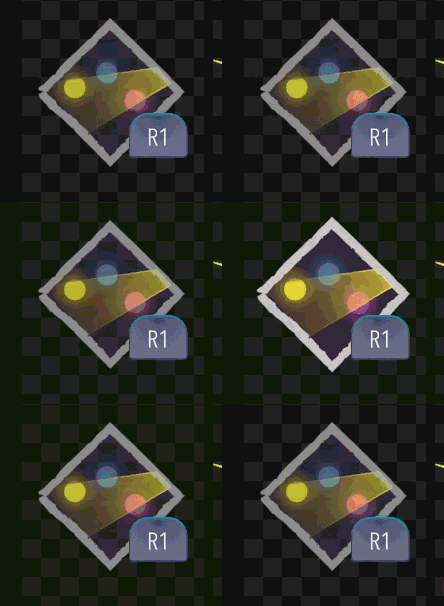
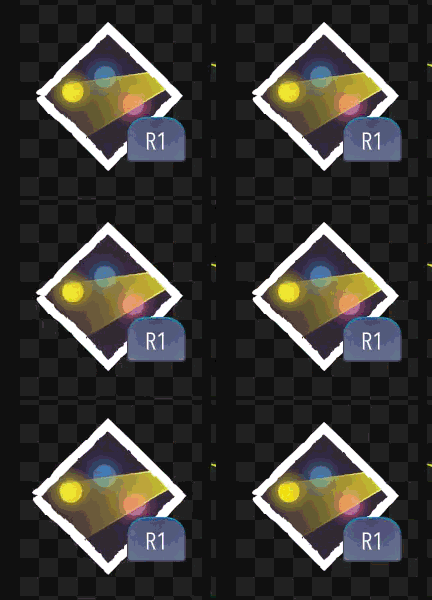
Icons should be easy to understand, immediately
New iterations, clearer icons
After discussing with the rest of the team I discovered the meaning of the icons wasn’t clear at all, especially the Active Light icon. So I redesigned them and animated the transitions in After Effects.
Activating the Lantern from Passive to Active mode.
Dectivating the Lantern from Active to Passive mode.
Activating the Lantern from Active to Beam mode.
Dectivating the Lantern from Beam to Active mode.
Implementation in Unity
With the animation I made in Rive in mind, I redesigned the UI’s animation in Adobe After Effects. All the animations have been seperated and imported into Unity, after which our programming team will work on the functionality. The video on the right displays how it would look in Unity.
Note how this version is still a prototype in progress.
How would I do this differently in the future?
Reflection
What went well?
I had never worked with Rive before, or designed UI for a 3D entertainment game like this, so I learnt a lot by looking at how other people work. I’m especially proud of my decision-making when it comes to the UX of the Lantern.
What could go better?
Next time, I would be quicker with deciding whether to use a software, like Rive, or not. Time is costly during the sprint, and I would’ve progressed a lot more with the Unity UI if I’d made the decision earlier, if only a few hours.I also would’ve put more time into sketching variations to get more unique ideas.

HUD ELEMENT / UX RESEARCH / UI DESIGN / MICROANIMATIONS
Making Zyra’s Light Lantern modes visible
Researching and designing different ways for the player to select a Light mode when using Zyra’s Lantern in the game Zyra’s Light.
About the project
Role UX designer, UI designer
Project Zyra’s Light
Duration April 2026
Concept owner Michaël Albers
Device PC with controller support
The context
Zyra’s Light is a game developed during the Minor Full-Time Game Development at HAN University of Applied Sciences. With a group of 15 people, consisting out of an art team, a sound team, a programming team and a gameplay team, a first game demo is being created. Zyra’s Light revolves about the main character Sara exploring and escaping a cave system, being guided by Zyra’s Lantern, and influencing the emotions of spirits found in the caves.
For the project, I’ve taken the role of Art Team Lead, and I’m responsible for both the art design team, as well as the Game UI and UX. Zyra’s Lantern is one of the core features of the game, and has three different modes with different functions. This case study shows how I’ve designed the UI for these functions.
When and how often does the user use the Lantern?
Deciding functionality and accessibility
Before designing the HUD element for Zyra’s Lantern, I needed to know which Light Modes the Lantern would have, and especially how often the player would switch between them. Together with the gameplay team it was decided that each Light Mode would only be used in a certain area, and for very specific cases.
Glow Mode
Functionality
Used when the player doesn’t need to use any power-ups, as a general light source.
How often needed?
Used all the time whenever a power-up isn’t used.
Spirit Mode
Functionality
Indicates which pearl is active, shows hidden spirits to the player.
How often needed?
Used whenever the player uses a power-up, used half of the time.
Beam Mode
Functionality
Used as a flashlight in dark caves, acts as a scanner to collect clues from artifacts.
How often needed?
Not used often, only in dark tunnels.
How can we help the player most effectively?
Quick-select wheels or toggles?
After deciding each Light Mode’s functionality and frequency in use, it was time to decide what HUD elements would fit the function best. Best Practices show quick-select wheels being used to toggle between weapons in FPS games, and ability toggles to quickly switch from option A to option B.
Top
A collection of UI-elements as inspiration for Best Practices, from games with similar features, such as Slime Rancher and Outer Wilds. All images are collected from GameUIDatabase.com.
Bottom
Quick sketches of various UI elements that would work for the Lantern feature. These gave a feel of how they’d fit in the screen and could quickly communicate the idea to other team members.
Most games use a quick-selection wheel menu to select weapons or abilities, however, often when there’s five or more options. For us this would work for the Emotion Pearls - another core feature - but for the Lantern we needed a quicker or more lowkey selection system, one which is always visible, unlike the wheel menu. This way the player always knows, besides from environmental cues, what Lantern mode is active.
“The player always needs to know which Lantern Mode is active.”
Making iterations on a quick-select wheel and a button toggle helped visualize how I could fit in the three Light Modes. A quick-select wheel turned out to be difficult to design with only three options. We also noticed that having a button toggle which hides one of the option wouldn’t make all the Light Modes visible to the player, making the function confusing.
The visual design process of the button toggle
Light Modes visible at all times
Eventually we settled on a button toggle with either option always visible. The standard Light Mode would be the glow. The player can then choose to activate either the Spirit Mode by pressing R1 and the Beam Mode by pressing R2 on a controller. The next step was to design how the button toggle should look, and how it would most effectively communicate its functionality to the player.
Toggle Layout
I initially designed two variations for the button toggle: A segmented control where the player has to switch between options with one invisible, and a toggle button with both options always visible.
Iconography
To clearly communicate which button contains which function, I designed three icons.
Iterations
Making variations of the buttons with their icons helped me distinquish which buttons could be most effective in translating their function and use.
The bottom right variation shows how when R1 is active, R2 is inactive at the same time, for example.
Researching different softwares
Prototyping for integration
To implement the UI into Unity I needed to figure out the best way for integration. I’d heard of Rive, a UI prototyping tool often used for web, mobile and game UI, and I already had some experience with the Unity TextMesh Pro UI add-on. To prototype, I started with learning about Rive.
Interactive UI with Rive
Learning Rive was done through the product’s tutorials, and I quickly got around to working with the interface and its features. Through Rive I designed the microanimations and -interactions.
However, I soon noticed how making a button on it’s own took a lot of steps, which would’ve been quicker and easier in Figma and Unity. So, after prototyping I decided that’d take too much time for the scope, and I switched over to Unity.
Icons should be easy to understand, immediately
New iterations, clearer icons
After discussing with the rest of the team I discovered the meaning of the icons wasn’t clear at all, especially the Active Light icon. So I redesigned them and animated the transitions in After Effects.
Activating the Lantern from Passive to Active mode.
Dectivating the Lantern from Active to Passive mode.
Activating the Lantern from Active to Beam mode.
Dectivating the Lantern from Beam to Active mode.
Implementation in Unity
With the animation I made in Rive in mind, I redesigned the UI’s animation in Adobe After Effects. All the animations have been seperated and imported into Unity, after which our programming team will work on the functionality. The video on the right displays how it would look in Unity.
Note how this version is still a prototype in progress.
How would I do this differently in the future?
Reflection
What went well?
I had never worked with Rive before, or designed UI for a 3D entertainment game like this, so I learnt a lot by looking at how other people work. I’m especially proud of my decision-making when it comes to the UX of the Lantern.
What could go better?
Next time, I would be quicker with deciding whether to use a software, like Rive, or not. Time is costly during the sprint, and I would’ve progressed a lot more with the Unity UI if I’d made the decision earlier, if only a few hours.I also would’ve put more time into sketching variations to get more unique ideas.
What are the next steps?
For the rest of the implementation I’ll be animating the UI in Unity, and I’ll be working very closely with the Programming and Gameplay team to make sure the UI fits the vision of Zyra’s Light.
The UI for the Emotion Pearls will be designed in the next sprint since it’s the next most important feature, and both UIs will be tested through gameplay tests and usability tests, including eye-tracking and colorblindness to figure out whether it’s usable for our playerbase.